Use this guide when an Agent should behave differently without changing platform code. You will save one draft, correct its validation errors, publish it, and start a new Session that uses the new publication. Work already attached to an existing Session keeps the publication it started with.
Goal
Finish with a published Agent and a new Session in which the changed instructions or capabilities are visible. Keep the previous publication available to work that already uses it.
Decide what to change
| If you want the Agent to… | Change | Check before publishing |
|---|---|---|
| answer or plan differently | system instructions, model, fallback candidates, or max_steps | the model resolves and the instructions describe an observable behavior |
| take a different action | Tools, Skills, or MCP servers | every selected capability exists and its credential or resource is ready |
| delegate work | multi-Agent roster and delegation limits | every allowed Agent resolves and the roster is no broader than needed |
| retain a different amount of working context | Memory/resource bindings, context-window policy, or compaction | the selected resources resolve and the policy fits the intended Session |
| recover a Tool differently | per-Tool recovery policy | the retry or stop behavior is explicit for that Tool |
This table helps choose the editing surface. The complete field definitions and lifecycle remain in Agent configuration reference.
Prerequisites
- a running Awaken deployment and access to
/w/<workspace>/agents; - a Provider Connection whose model can be resolved;
- any Tools, Skills, MCP servers, credentials, and resources the Agent will use.
Complete Configure providers, models, and credentials before publishing if the model readiness check does not yet succeed.
1. Edit and save the draft
Create or open an Agent in the Console. Change only the behavior needed for the next Session, then save the draft.
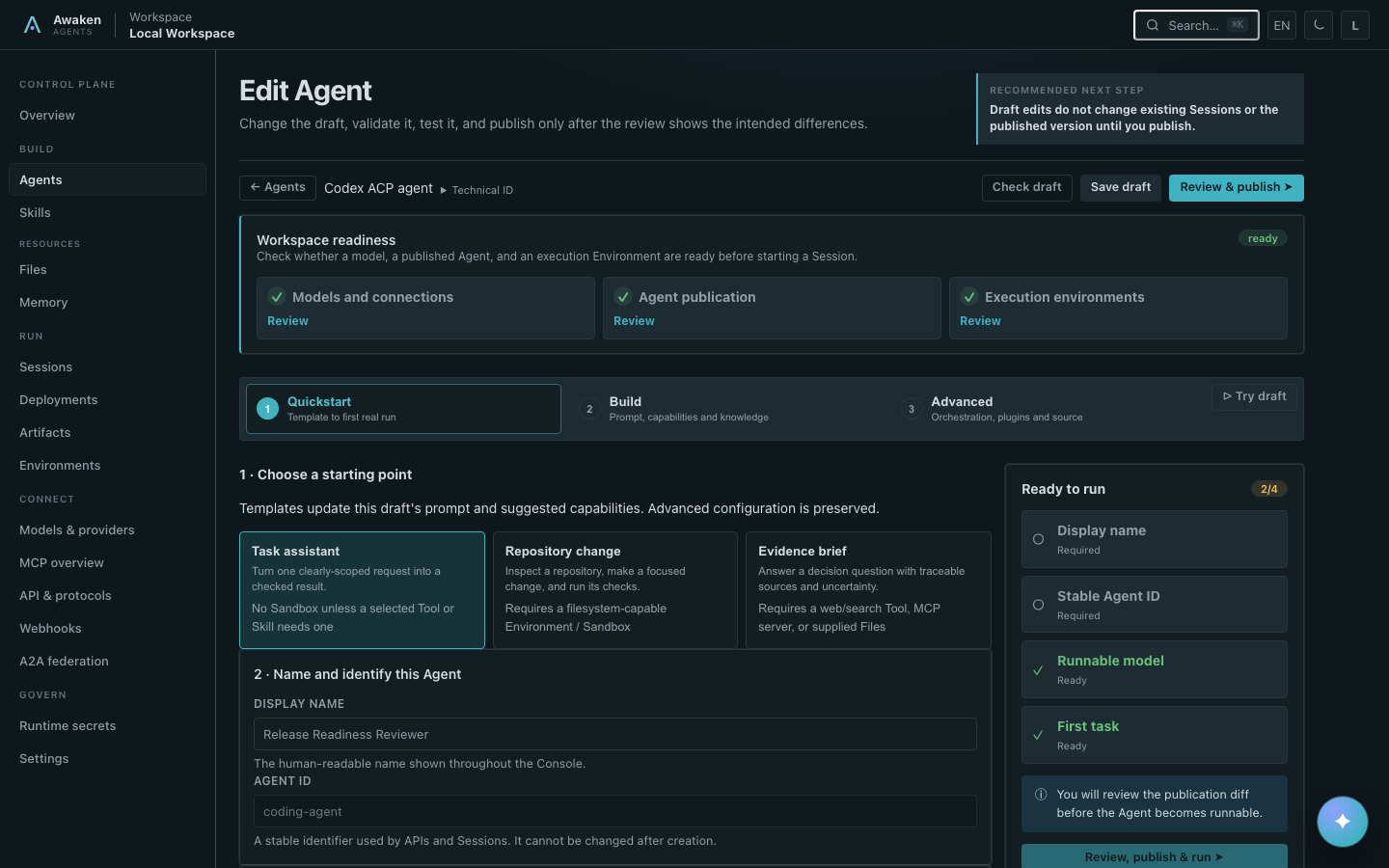
Online configuration can select or narrow capabilities the system already provides. It cannot add a Rust Tool, provider adapter, Plugin, or Sandbox backend, and it cannot grant authority that the current Workspace does not hold.
2. Check the draft
Choose Check draft. Fix each field-addressed issue until model, capability, credential, and resource resolution succeeds. Validation does not replace the installed publication.
Configure an MCP integration as one unit
Open Build → Skills & MCP when the Agent calls an external MCP server. Each MCP integration contains the connection and the ToolSet policy that governs its discovered tools:
- choose HTTP or Sandbox stdio, then enter a unique server name and target;
- choose the credential reference for an HTTP server when it requires one;
- set the default permission to Ask before use or Allow without asking;
- add a named override only when one tool needs a different permission or must be unavailable.
New tools discovered from that server inherit the ToolSet default. Renaming the integration updates its MCP ToolSet references. Removing it also removes the related overrides and recovery entries, so the draft cannot retain a policy for a server it no longer uses.
Use Tools & permissions for built-in Agent tools and client-executed Custom Tools. A Custom Tool declares the name, description, and input schema that the model sees. The calling application executes it and returns the matching result; Awaken does not turn that declaration into a server-side implementation.
3. Publish explicitly
Choose Review & publish after checking the draft. Review the exact draft-versus-published changes, then confirm Publish only when they match your intent. Admin Assistant can draft or patch the same source configuration from natural language, but it has no publish tool. Publication remains a deliberate developer action.
4. Start a new Session
Create a new Session from the Agent. Confirm that it uses the new publication fingerprint, then send one input that makes the intended change observable. Do not expect an existing or awaiting Run to switch versions.
flowchart LR
  E[Console Agent Editor] --> D[Save AgentConfig draft]
  D --> V[Check draft<br/>resolve model, tools, resources]
  V -->|valid| R[Review exact changes]
  V -->|invalid| E
  R --> P[Confirm Publish]
  P --> S[ExecutableAgentSnapshot<br/>fingerprint]
  S --> N[New Run]
  O[Existing / Awaiting Run] -. keeps original snapshot .-> O
Automate through the API
Console and automation use the same boundary. The server projects the following
managed-shaped payload into the one AgentConfig; it is not a second Agent
definition:
Save this payload as agent.json:
{
  "name": "Research assistant",
  "system": "Answer from the configured sources and cite evidence.",
  "model": {"id": "claude-sonnet", "provider_identity_ref": "anthropic", "backend_ref": "genai"},
  "mcp_servers": [{"name": "issues", "url": "https://mcp.example.com/issues"}],
  "tools": [
    "web_search",
    {
      "type": "mcp_toolset",
      "mcp_server_name": "issues",
      "default_config": {"enabled": true, "permission_policy": {"type": "always_ask"}},
      "configs": [{"name": "search_issues", "enabled": true, "permission_policy": {"type": "always_allow"}}]
    }
  ],
  "skills": ["source-review"],
  "max_steps": 12,
  "context_policy": {"kind": "keep_last", "keep_last": 40}
}
Use that same file for the saved draft and the read-only validation request:
curl -sS -X PUT http://localhost:8080/v1/config/agents/research-assistant \
  -H 'content-type: application/json' \
  -d @agent.json

curl -sS -X POST http://localhost:8080/v1/config/agents/research-assistant/validate \
  -H 'content-type: application/json' -d @agent.json

curl -sS -X POST http://localhost:8080/v1/config/agents/research-assistant/publish
Unknown Tools, unresolved models, invalid credential references, or malformed configuration stop validation without changing the installed publication. Publish creates the secret-free execution snapshot used by new Runs.
Verify
- the Agent shows a successful validation result;
- publication returns a fingerprint;
- a newly created Session reports that fingerprint;
- the test input produces the intended changed behavior;
- an existing Session remains on its earlier publication.
Troubleshooting
If the table does not resolve the problem, record the Workspace, Agent ID, draft revision, validation field path and error code, publication fingerprint, and correlation ID before contacting support. Do not include prompt content, tokens, or credential material.
| Symptom | Check | Action |
|---|---|---|
| model resolution fails | Provider Connection and model selector | repair the connection or choose a model that the connection exposes, then validate again |
| a Tool, Skill, MCP server, or resource is unknown | catalog entry and Workspace access | install or grant the existing capability through its owning path; do not encode a new capability in Agent config |
Next steps
- Read the exact Agent configuration fields and lifecycle.
- Configure providers, models, and credentials when a model is not ready.
- Manage the new Session.